Oolook for AI Image Generator

Create Marketing Images With AI and Brand Context

Turn a campaign objective, prompt, visual reference, and available Brand Kit direction into editable marketing visuals inside the selected brand workspace.

Oolook Copilot

AI creative preparation

Working in: Alder & Form
Ask anything
This is a fictional demonstration. Available models, settings, references, and credit costs can change.
Create a product visualUse a reference imageGenerate campaign variations

Supported actions are prepared for review and confirmation. Publishing capabilities and formats depend on current Oolook availability and the destination network.

AI image generation for marketing

Generate Visual Assets Around a Real Campaign Objective

Use prompts, references, supported models, output settings, aspect ratios, and brand context, then save approved results to the Media Library.

Start with the objective

Turn the Campaign Brief Into a Clear Image Prompt

Define the subject, audience, intended use, visual direction, required space, and factual constraints before generating the image.

  • Use available Brand Kit visual direction
  • Describe the subject and intended marketing use
  • Include composition and aspect-ratio requirements
  • Keep product and factual constraints visible
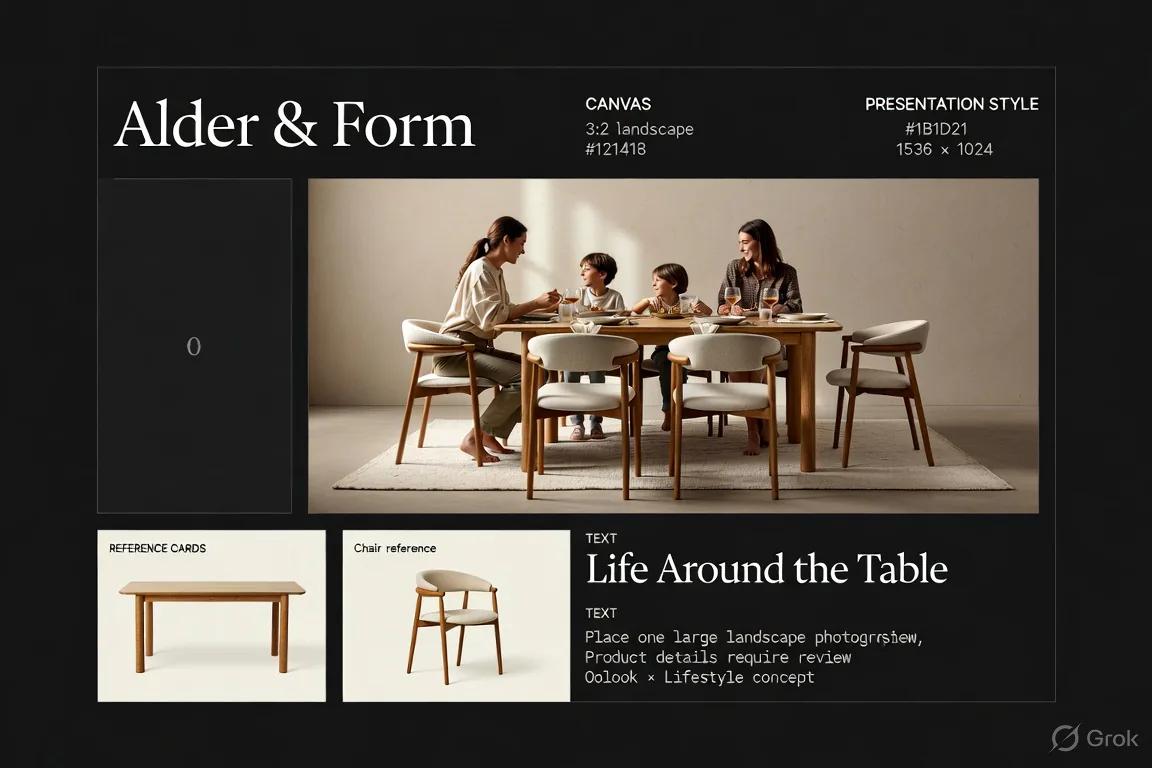
Marketing image prompt prepared using Oolook Brand Kit context

Add visual references

Use Approved References When the Workflow Supports Them

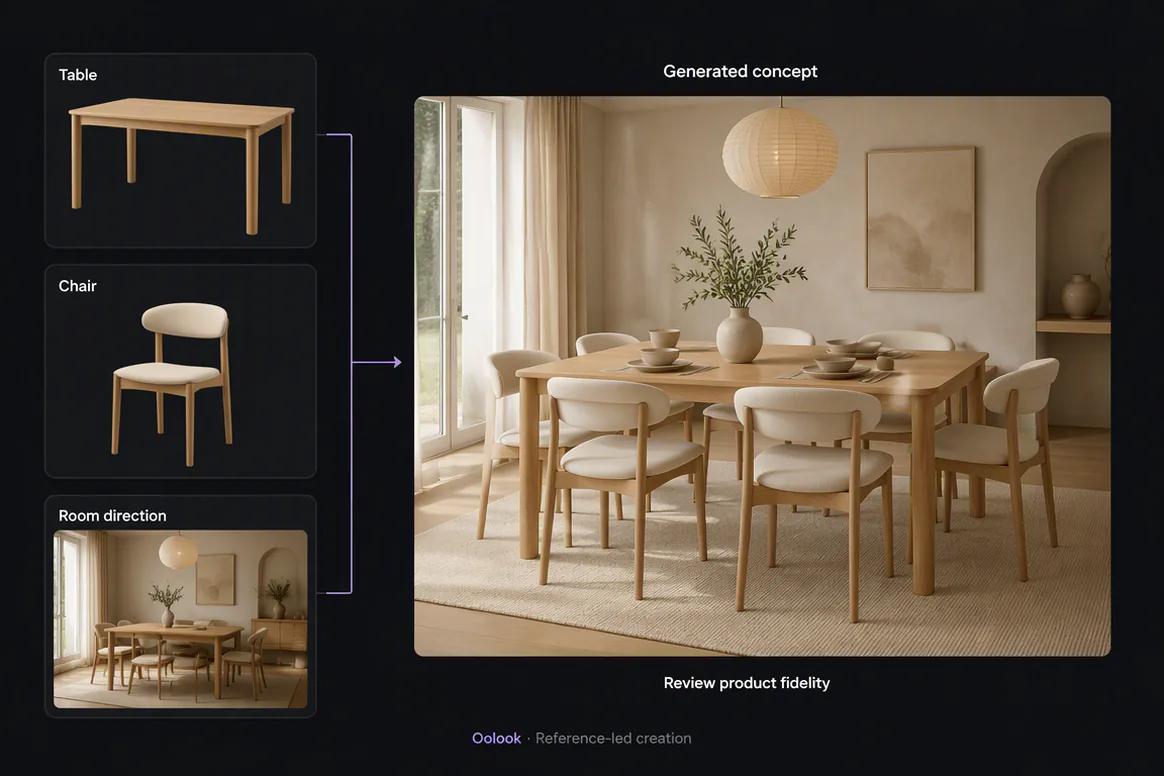
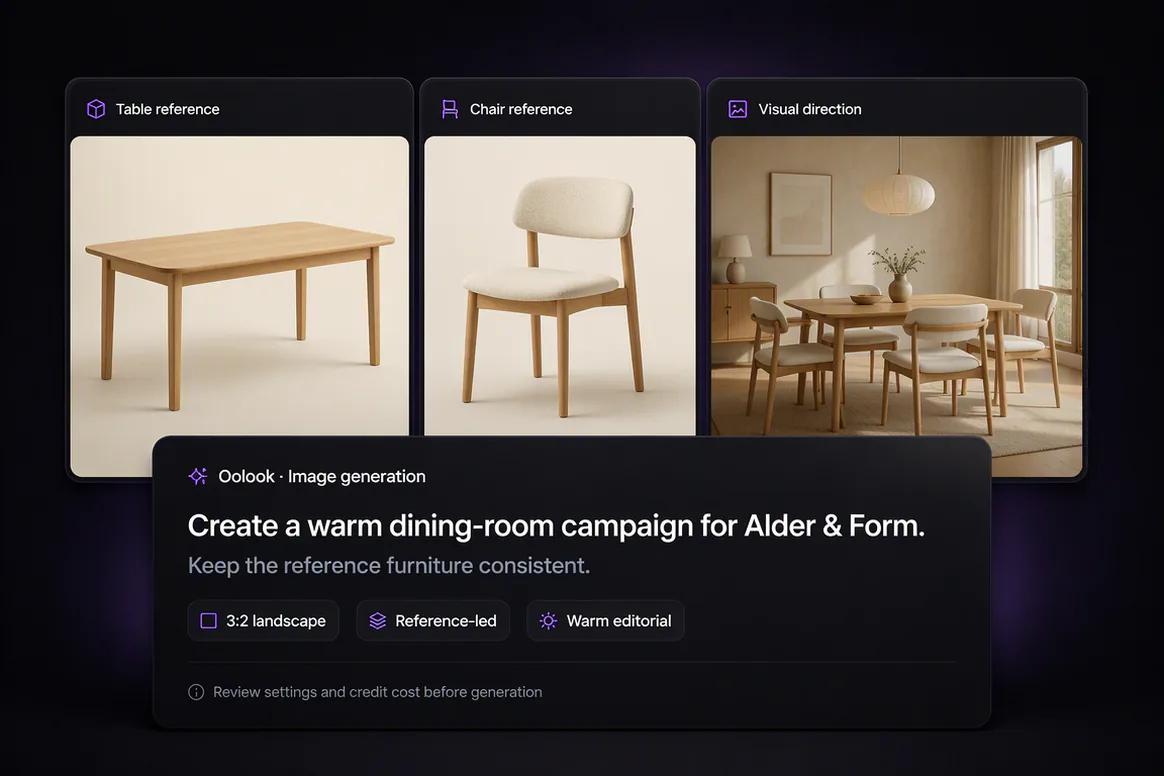
Upload or select relevant images to clarify the subject, composition, product, character, or visual language required by the campaign.

  • Select references from the Media Library
  • Use reference-capable image models
  • Keep product accuracy requirements explicit
  • Review generated details against the approved source
Reference images selected for AI marketing image generation in Oolook

Configure the output

Choose the Model, Quality, Aspect Ratio, and Output Settings

Select from currently available image models and the settings each model supports rather than assuming every option is available everywhere.

  • Choose an available image model
  • Select a supported quality or resolution
  • Set an appropriate campaign aspect ratio
  • Review the displayed credit cost before generation
AI image model quality and aspect ratio settings inside Oolook

Review and reuse

Save Approved Images to the Brand Media Library

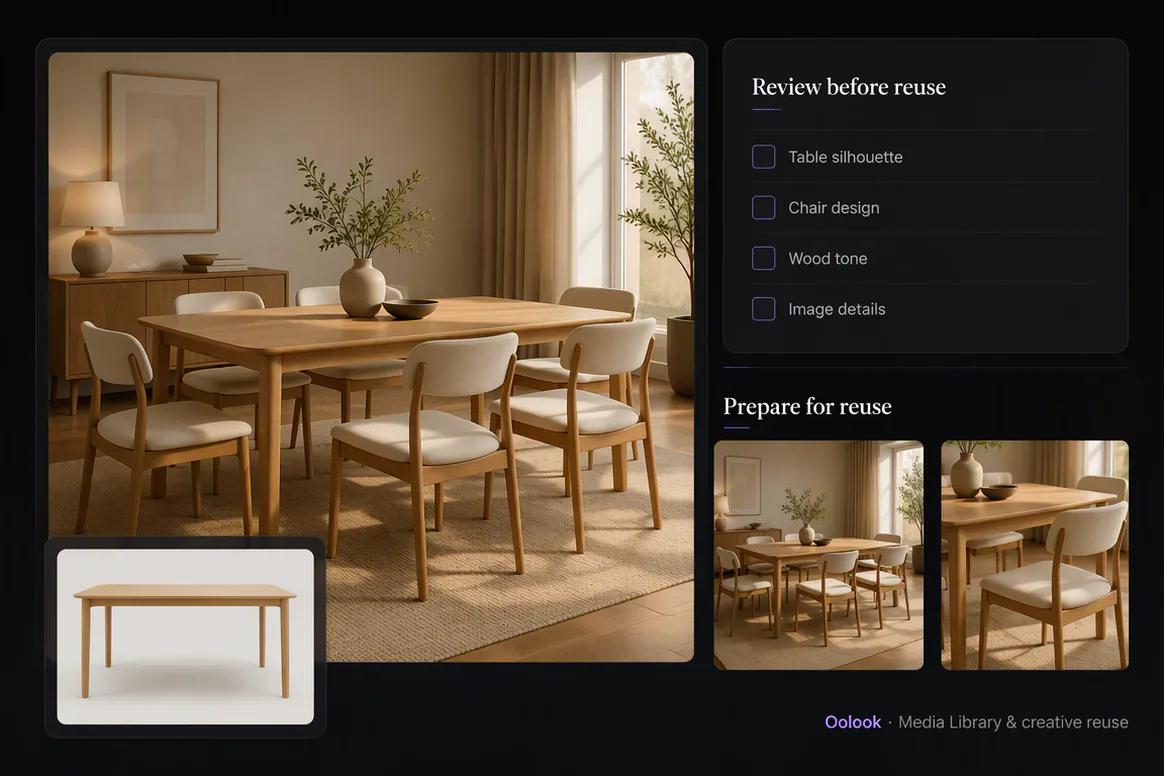
Inspect the output for quality, product accuracy, brand alignment, and campaign fit before saving it for reuse or continuing into publishing.

  • Review generated details before approval
  • Save selected outputs inside the correct brand
  • Process eligible images when adjustments are required
  • Continue into social or SEO content workflows
Approved AI marketing images saved to the Oolook Media Library

Generated marketing images

Create a Consistent Set of Campaign Images

Move from prompts and approved references into reviewed product, lifestyle, editorial, and seasonal campaign visuals.

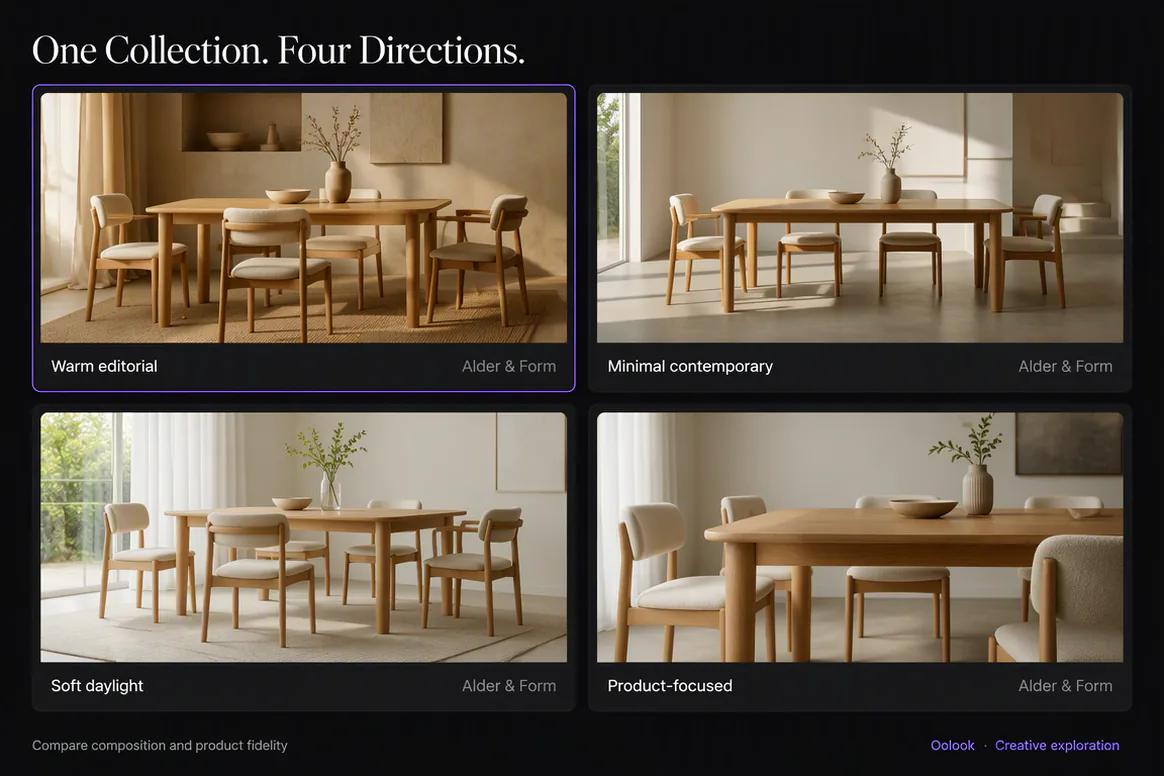
Oolook displaying a generated furniture product campaign image

Product Campaign Image

Create a product-led campaign visual using approved references and Brand Kit direction.

Oolook displaying a generated furniture lifestyle image

Lifestyle Campaign Image

Place the approved product into a realistic campaign environment while preserving product fidelity.

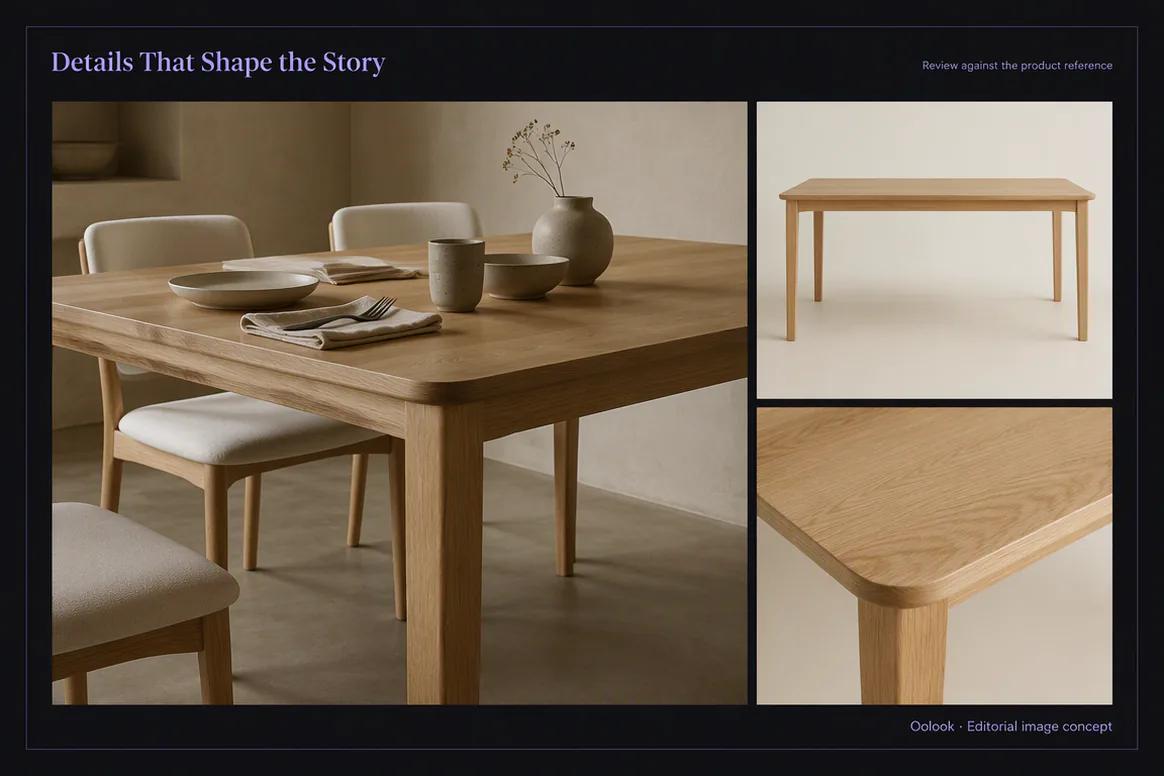
Oolook displaying a generated editorial furniture detail image

Editorial Product Image

Create a detail-focused visual around the product's approved material and design references.

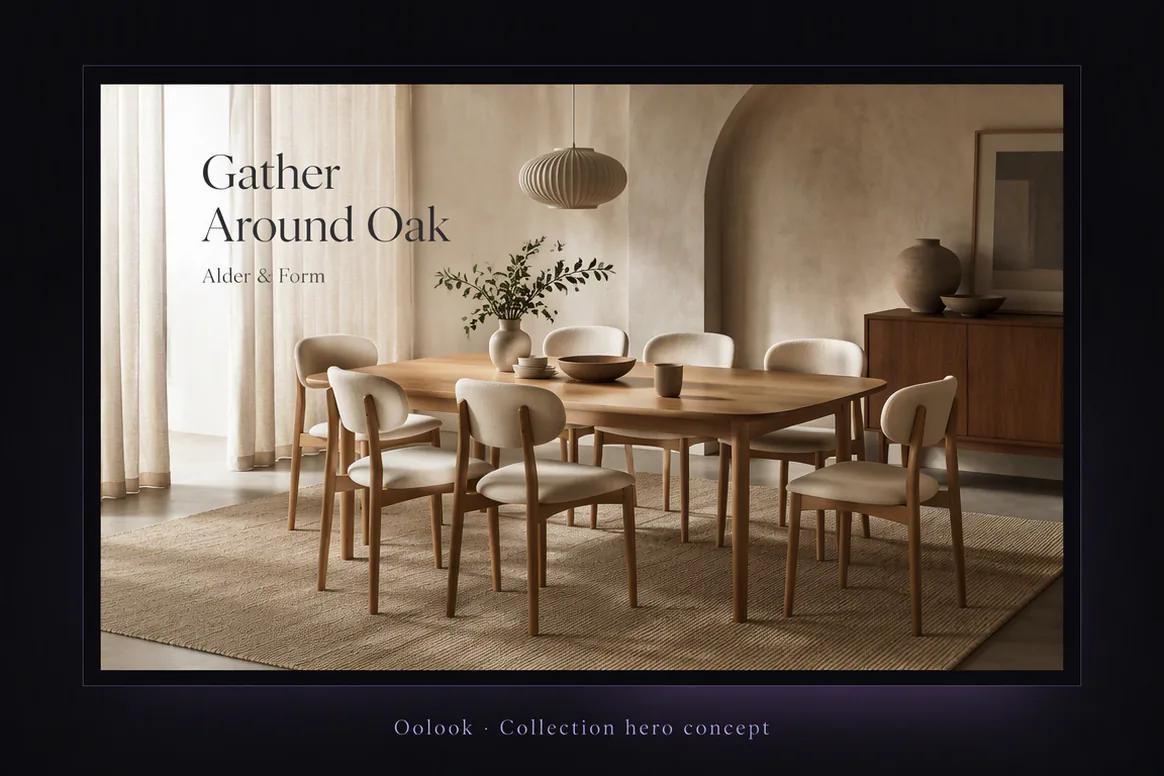
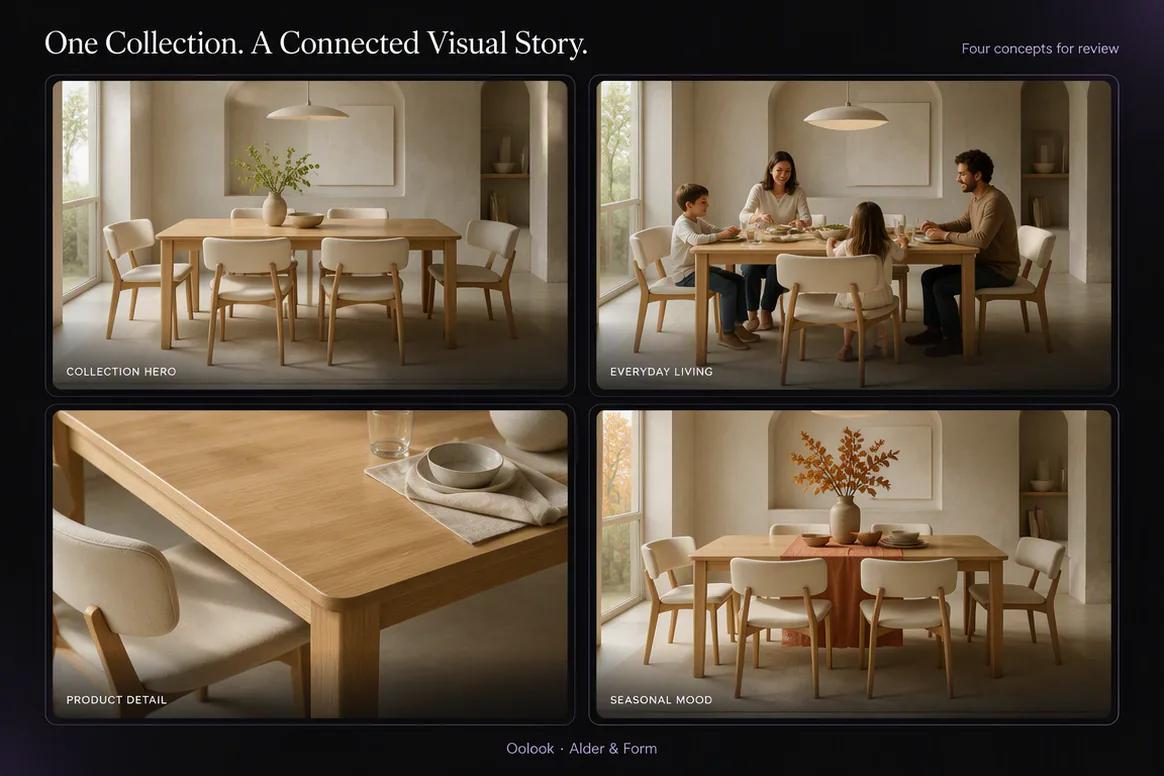
Oolook displaying a coordinated collection of generated campaign images

Generated Campaign Collection

Organize approved product, lifestyle, detail, and seasonal outputs for campaign reuse.

Oolook Copilot in action

How Oolook Copilot Prepares an Image Generation

Connect the marketing request to available brand context while preserving control over credit-consuming generation.

01

Describe the image

Provide the subject, campaign objective, audience, intended format, and visual requirements.

02

Apply available context

Use Brand Kit information, existing Media Library assets, and approved visual references where relevant.

03

Configure the generation

Choose the supported model, quality, aspect ratio, reference inputs, and output settings.

04

Review and confirm

Inspect the generation request and displayed credit cost before allowing the supported action.

Built for AI Image Generator

Configure Images for Different Marketing Uses

Available models, quality levels, reference support, generation settings, aspect ratios, credit costs, and restrictions can change.

Campaign visuals

Create visual assets around a launch, promotion, event, or recurring marketing theme.

Product imagery

Prepare product-led visuals while keeping accuracy and approved references central to review.

Social creative

Generate visual assets using supported aspect ratios for intended social destinations.

Brand assets

Create reusable visual material guided by available brand and campaign context.

Practical marketing jobs

Use Oolook for Recurring Marketing Image Work

Generate images for defined marketing jobs instead of treating every prompt as an isolated experiment.

Create a product-launch hero image

Generate seasonal campaign visuals

Prepare supporting imagery for social posts

Create visual directions for a new campaign

Produce variations from an approved reference

Build article and campaign supporting assets

One connected workspace

Connect Image Generation to the Complete Workspace

Keep generation connected to the brand context, reference assets, media operations, content, and publishing workflow.

Brand Kit

Use available visual direction, colors, references, audience, positioning, and campaign information.

Oolook Copilot

Prepare supported image requests using available workspace context and visible generation details.

Model controls

Choose from the currently available model, quality, aspect ratio, and reference settings.

Media Library

Find reference assets and save approved generated outputs inside the selected brand.

Media processing

Continue into supported resizing, reframing, background removal, upscaling, palette, and color workflows.

Social publishing

Use approved generated images in destination-specific drafts and supported publishing actions.

Why Oolook

Move Beyond an Isolated Image Generation Prompt

Oolook connects AI image generation to the brand workspace and the marketing work surrounding the output.

Workflow
Disconnected tools
Oolook
Brief
Rewritten in a separate generator
Connected to the campaign objective
Brand context
Added repeatedly as prompt text
Available through the selected Brand Kit
References
Uploaded again for each generation
Selected from available workspace media
Storage
Outputs are downloaded into folders
Approved results remain in the Media Library
Execution
Assets move manually into another tool
Continue into content and publishing workflows

Step-by-step guide

How to Generate a Marketing Image With AI

Build a clear request, select appropriate controls, and review the output before using it.

  1. 1

    Select the brand workspace

    Use the workspace containing the relevant Brand Kit, campaign, references, and Media Library.

  2. 2

    Define the marketing objective

    State what the image should communicate, who it is for, and where it will be used.

  3. 3

    Write the image prompt

    Describe the subject, environment, composition, lighting, visual treatment, and factual constraints.

  4. 4

    Add approved references

    Select relevant images when the chosen model and workflow support reference inputs.

  5. 5

    Choose the generation settings

    Review the current model, quality, aspect ratio, output count, and displayed credit cost.

  6. 6

    Confirm the generation

    Approve the credit-consuming action only after the complete request has been reviewed.

  7. 7

    Review and save the result

    Check quality, accuracy, brand alignment, and campaign fit before saving the selected output.

Frequently asked questions

Your AI Image Generator Questions, Answered

What is an AI image generator for marketing?+

An AI image generator for marketing creates visual assets from prompts and supported reference inputs for campaigns, products, social content, articles, and other marketing uses.

Can Oolook generate marketing images?+

Yes. Oolook includes credit-based image-generation workflows with currently available models, qualities, aspect ratios, references, and output settings.

Can I use reference images?+

Reference support depends on the selected image model and current workflow. Models that support references can use approved images to guide the generation.

Can Oolook use my Brand Kit?+

Available Brand Kit information can guide supported image, carousel, moodboard, media, content, and Copilot workflows.

Which aspect ratios are available?+

Available aspect ratios depend on the selected model. Current model settings can include square, portrait, landscape, vertical, widescreen, and automatic options.

Does image generation use AI credits?+

Yes. Oolook uses credits for supported AI operations. The exact cost depends on the selected model, quality, output settings, and current pricing configuration.

Are generated images automatically accurate?+

No. Generated images should be reviewed for product accuracy, factual details, text, people, branding, and suitability before publication.

Where are generated images stored?+

Approved generated outputs can be stored in the selected brand's Media Library for organization, processing, and reuse.

Start with Oolook

Create Marketing Images Without Losing the Brand Context

Connect prompts, references, Brand Kit direction, model controls, credit review, Media Library storage, and publishing workflows.