Oolook for Marketing Media Library

Organize, Find, and Reuse Marketing Assets by Brand

Keep uploaded media, generated outputs, processed assets, images, videos, and documents connected to the brand workspace where they are created and used.

Oolook Copilot

Media Library discovery

Working in: Alder & Form
Ask anything
Demonstration assets are fictional. Actual results depend on media stored in the selected brand workspace.
Find an approved campaign assetSearch generated imagesPrepare media for reuse

Supported actions are prepared for review and confirmation. Publishing capabilities and formats depend on current Oolook availability and the destination network.

Brand-specific marketing assets

Turn Your Media Library Into a Working Part of Execution

Use structured and semantic discovery to find relevant assets, review their details, process them when required, and continue into content or publishing workflows.

Store assets by brand

Keep Uploaded, Generated, and Processed Media Together

Associate each asset with the correct brand workspace instead of leaving campaign files scattered across downloads, generation histories, and unrelated storage folders.

  • Store uploaded images, videos, and documents
  • Save completed AI-generated outputs
  • Retain resized, upscaled, and background-removed media
  • Keep brand assets separate across workspaces
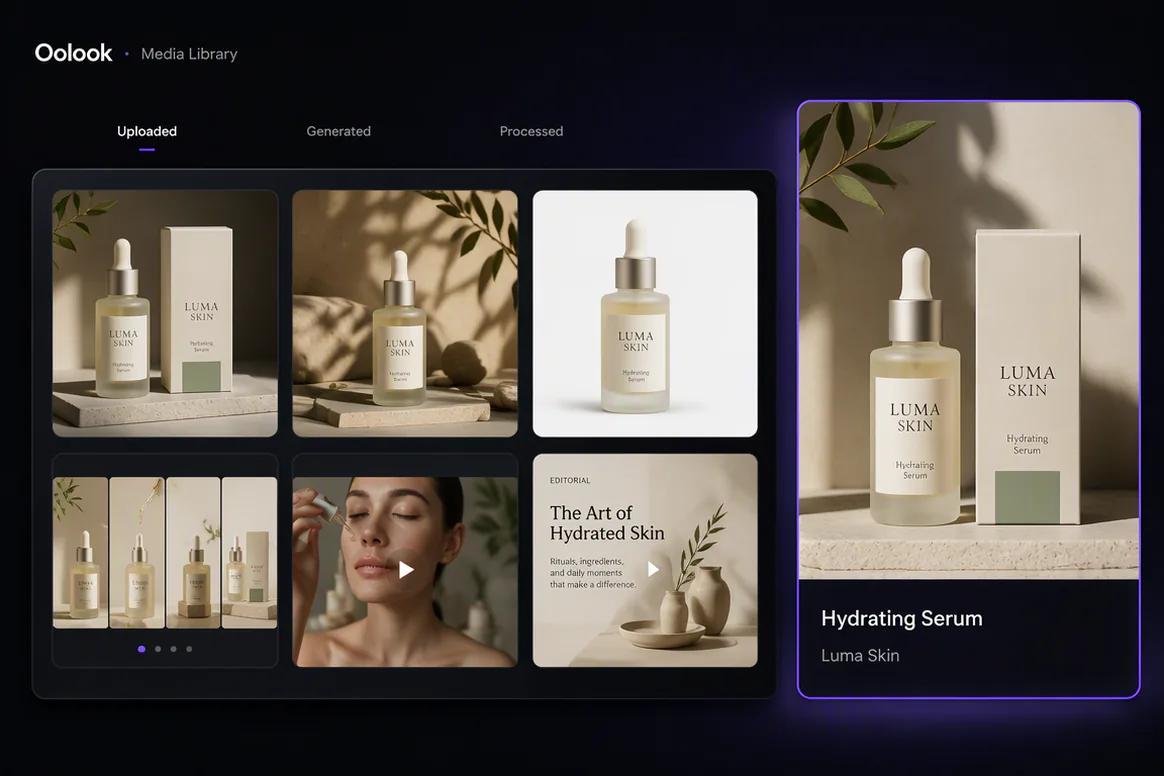
Brand-specific marketing assets organized in the Oolook Media Library

Find relevant assets

Search the Library Using Structure and Meaning

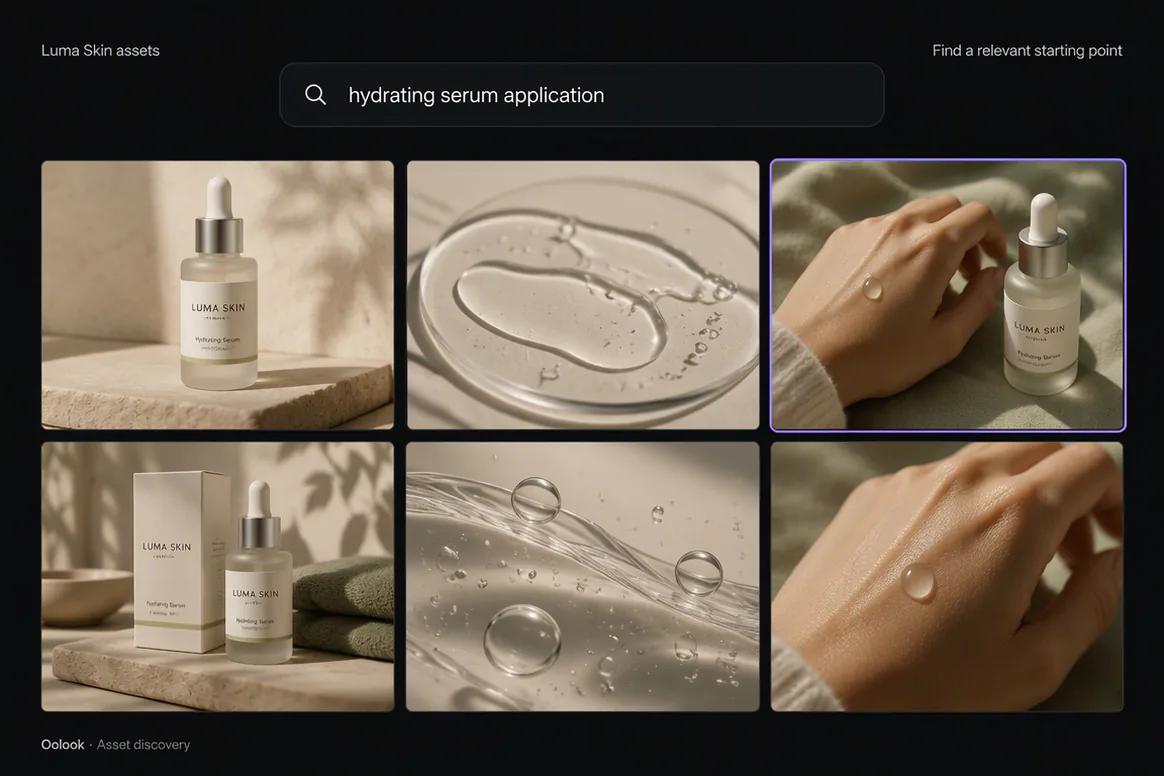
Search available asset records and use semantic discovery to find relevant media even when the original filename is not the phrase you remember.

  • Search assets inside the selected brand workspace
  • Use semantic discovery for contextual matching
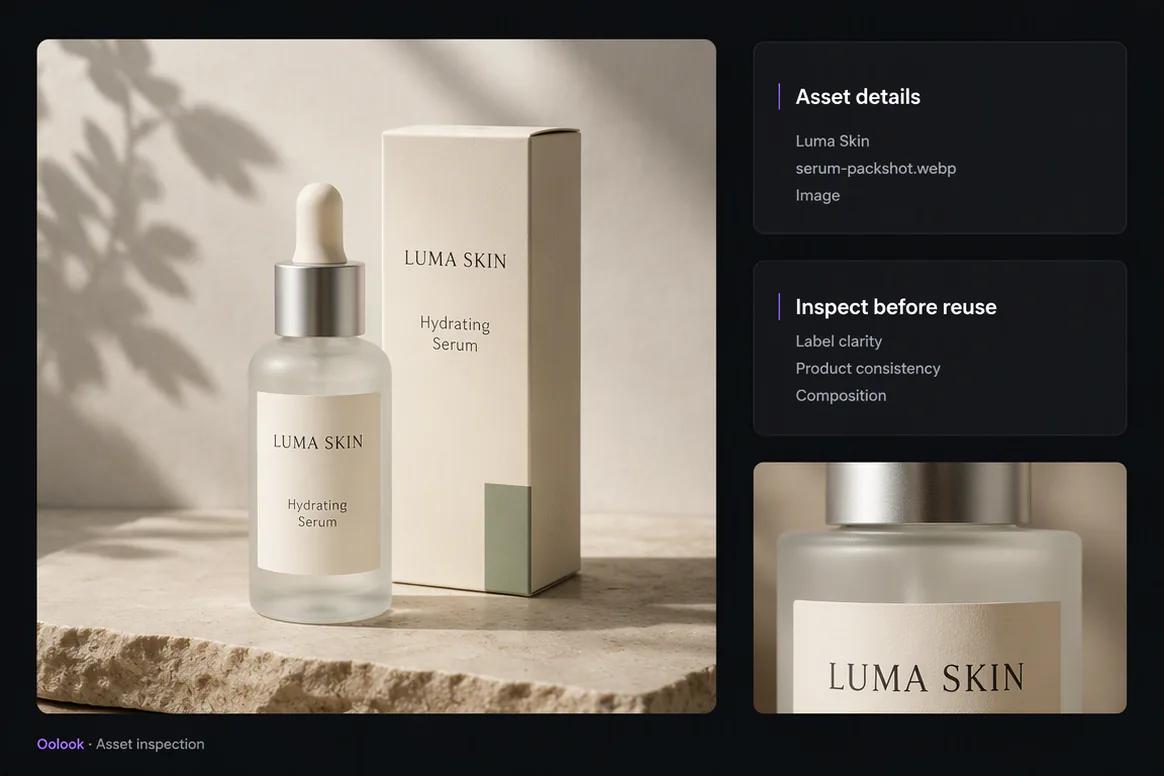
  • Review available asset details before reuse
  • Reduce unnecessary duplicate uploads and generations
Structured and semantic Media Library search inside Oolook

Prepare assets for reuse

Continue From Discovery Into Media Processing

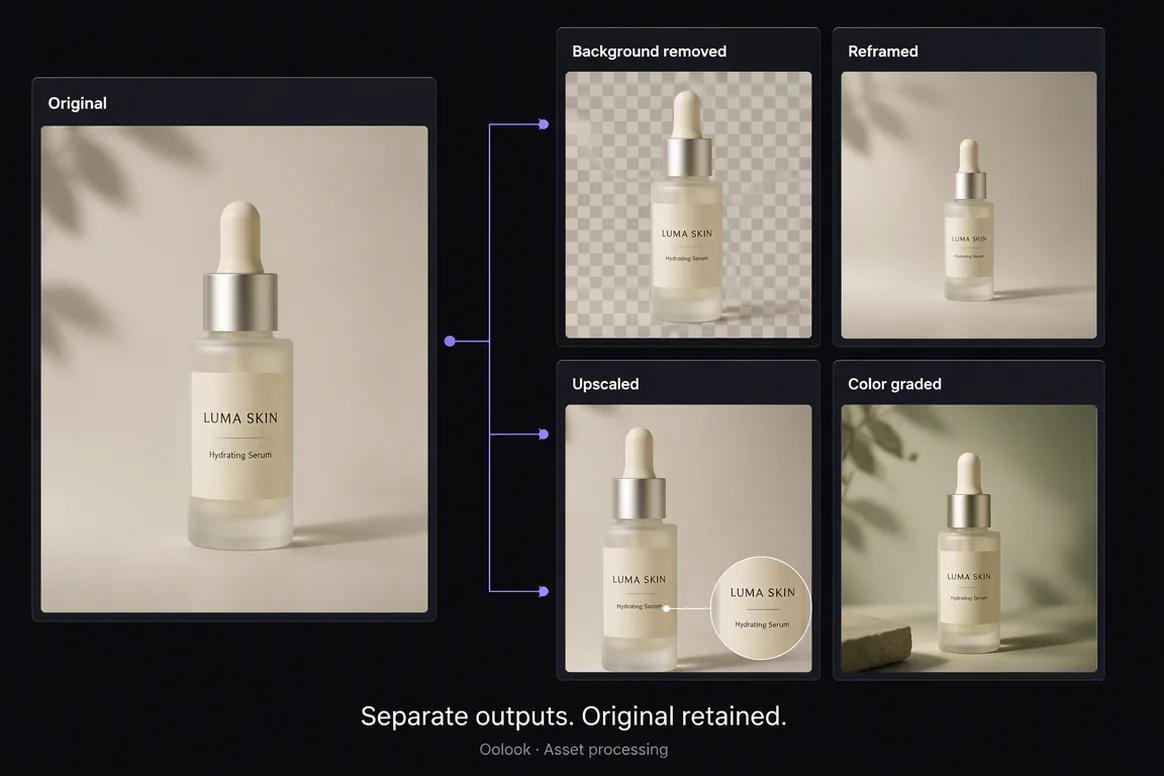
When an existing asset is close but not ready, continue into supported resizing, reframing, background removal, upscaling, palette, or color workflows.

  • Select an existing asset as the processing source
  • Create a new processed output without losing the original
  • Save approved results back to the Media Library
  • Reuse processed media in future campaign work
Existing Media Library asset prepared for processing and reuse

Use assets in execution

Connect Approved Media to Content and Publishing

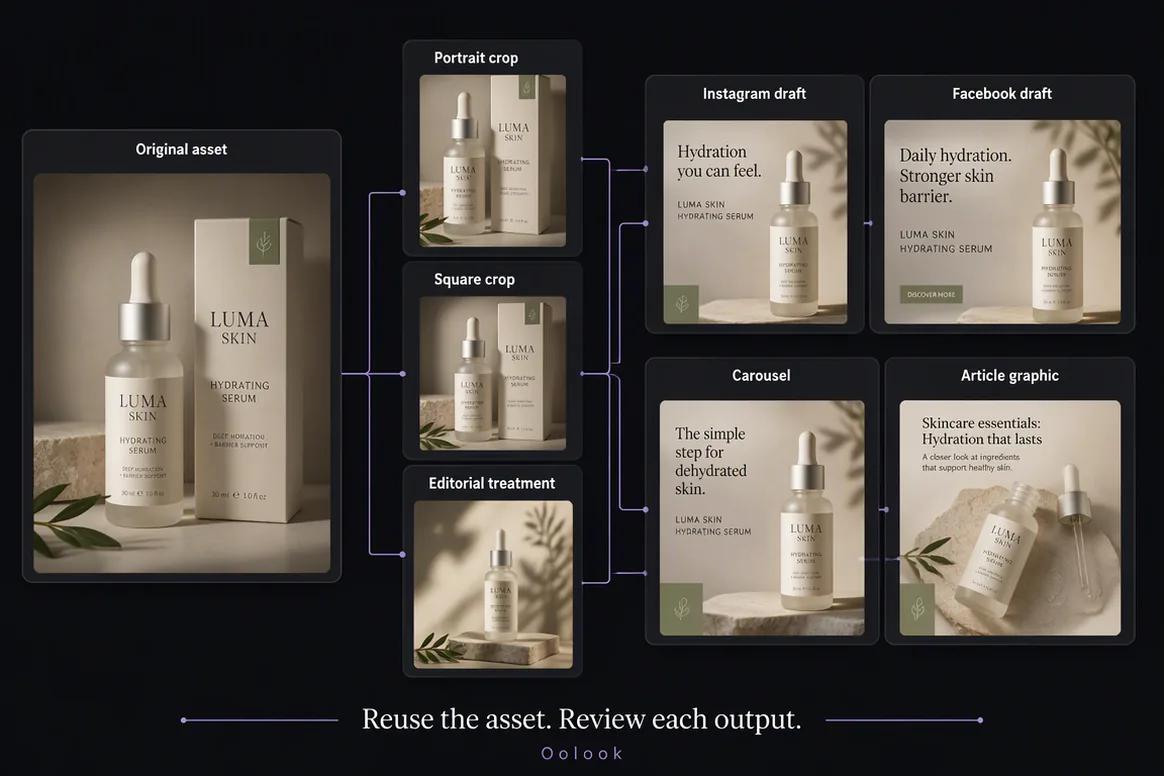
Move selected assets into supported caption, carousel, social publishing, and SEO content workflows without rebuilding the campaign context.

  • Attach approved media to social drafts
  • Use assets as creative references where supported
  • Connect processed outputs to destination-specific posts
  • Keep the asset associated with the selected brand
Approved Media Library asset connected to an Oolook publishing workflow

Media Library examples

Keep Uploaded, Generated, and Processed Assets Reusable

Organize approved source media, generated creative, processed variations, and campaign usage inside the correct brand workspace.

Oolook displaying approved uploaded beauty product assets

Uploaded Asset Collection

Organize product, packaging, texture, application, routine, and ingredient photography.

Oolook displaying AI-generated beauty campaign assets

Generated Asset Collection

Keep approved generated campaign visuals connected to their prompt, references, and brand.

Oolook displaying several processed versions of a product asset

Processed Asset Collection

Store background-removed, reframed, upscaled, and color-adjusted outputs without losing the source.

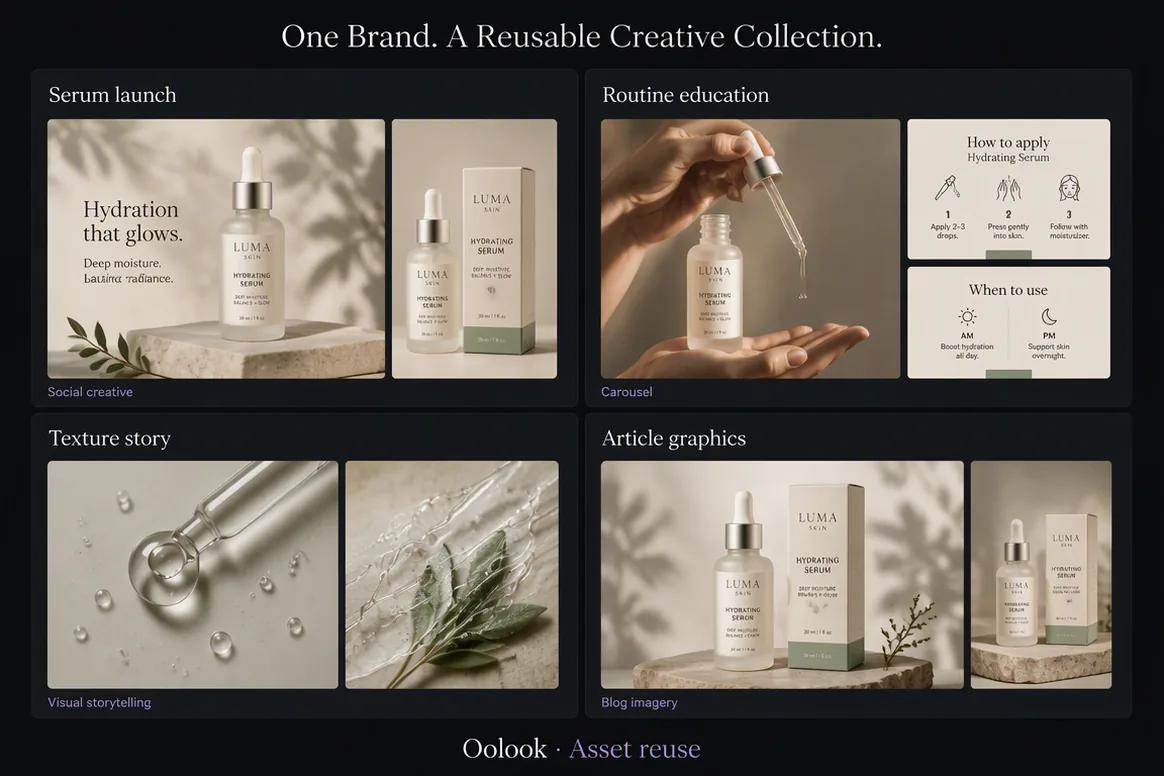
Oolook displaying a reusable campaign asset board

Reusable Campaign Assets

Connect approved assets to launch content, education, articles, and destination-specific drafts.

Oolook Copilot in action

How Oolook Copilot Helps You Find and Reuse Media

Use workspace-aware assistance while keeping destructive asset actions under user control.

01

Describe the asset

Tell Copilot what the asset contains, which campaign it belongs to, or how you intend to reuse it.

02

Search the workspace

Copilot can inspect available Media Library information inside the selected brand workspace.

03

Review the matches

Inspect relevant assets and their available details before selecting one for processing or reuse.

04

Confirm the action

Review supported rename, processing, reuse, or destructive deletion actions before execution.

Built for Marketing Media Library

Store the Assets Used Across Marketing Workflows

Supported file types, limits, storage allowances, search fields, and processing options depend on the current Oolook product and selected plan.

Uploaded media

Keep user-uploaded images, videos, and supported documents associated with the correct brand.

Generated outputs

Save approved AI-generated images, carousel cards, and other supported creative results.

Processed assets

Store resized, upscaled, background-removed, reframed, and color-graded outputs.

Reusable references

Use approved library assets as references in supported creative and campaign workflows.

Practical marketing jobs

Use the Media Library for Recurring Asset Work

Keep campaign assets discoverable and useful after the original generation or upload.

Find approved product photography

Reuse an earlier campaign image

Locate generated carousel cards

Prepare an image for another platform

Find a visual reference for generation

Attach approved media to a social draft

One connected workspace

Connect Media to the Complete Brand Workspace

The Media Library sits between creative production, media processing, content preparation, publishing, and future reuse.

Structured and semantic search

Find relevant assets through available metadata and contextual discovery inside the selected brand.

Oolook Copilot

Ask Copilot to inspect available media and prepare supported asset actions for review.

Creative applications

Save approved generated images, carousel cards, moodboards, and other supported creative outputs.

Media processing

Continue into supported resizing, reframing, background removal, upscaling, palette, and color workflows.

Social content

Connect approved media to captions, carousels, and destination-specific drafts.

Controlled deletion

Treat asset deletion as a destructive action that requires explicit confirmation.

Why Oolook

Replace Scattered Files With Brand-Specific Asset Context

Oolook connects assets to the brand and to the marketing work that creates, processes, and reuses them.

Workflow
Disconnected tools
Oolook
Organization
Assets spread across downloads and folders
Assets remain inside the selected brand workspace
Generated media
Outputs remain in separate generation histories
Approved outputs can be saved to the Media Library
Discovery
Search depends on remembered filenames
Structured and semantic discovery is supported
Processing
Files move into separate editing tools
Existing assets continue into supported processing
Execution
Media is uploaded again for each campaign
Approved assets continue into content and publishing

Step-by-step guide

How to Organize and Reuse Marketing Assets

Keep assets associated with the correct brand from creation through publication.

  1. 1

    Select the correct brand workspace

    Use the workspace containing the relevant Brand Kit, campaigns, profiles, content, and publishing records.

  2. 2

    Upload or generate the asset

    Add existing media or save an approved output from a supported Oolook creative application.

  3. 3

    Review the asset details

    Check the available name, type, source, and other contextual information used for organization.

  4. 4

    Search before creating again

    Use structured or semantic discovery to find relevant existing media before generating a duplicate.

  5. 5

    Process the asset when required

    Create a resized, reframed, upscaled, background-removed, palette-based, or color-graded result.

  6. 6

    Save the approved output

    Keep the new processed result inside the correct brand's Media Library.

  7. 7

    Continue into execution

    Use the approved asset in a supported caption, carousel, social post, or related marketing workflow.

Frequently asked questions

Your Marketing Media Library Questions, Answered

What is a marketing Media Library?+

A marketing Media Library stores and organizes assets used for campaigns and content. Oolook associates uploaded, generated, and processed assets with separate brand workspaces.

What can I store in the Oolook Media Library?+

The Media Library can store supported uploads, generated outputs, processed assets, documents, images, and videos associated with a brand.

Can I save AI-generated images?+

Yes. Completed AI-generated outputs such as generated images and carousel cards can be saved to the selected brand's Media Library.

Can I search the Media Library?+

Yes. Oolook supports structured and semantic Media Library searches, subject to current product availability and available asset information.

Can I process an existing library asset?+

Yes. Eligible assets can continue into supported background removal, resizing, reframing, upscaling, palette extraction, and color-grading workflows.

Can I use Media Library assets in social posts?+

Approved assets can be selected for supported social drafts and destination-specific publishing workflows.

Can Copilot find assets for me?+

Copilot can inspect available Media Library information in the selected workspace and help identify relevant assets.

Does Copilot delete assets automatically?+

No. Asset deletion is destructive and requires confirmation before the supported action is executed.

Start with Oolook

Turn Your Marketing Assets Into a Reusable Brand Library

Connect uploaded media, generated outputs, semantic discovery, processing, social content, and controlled publishing.