Oolook for AI Media Processing

Prepare Existing Images and Videos for Marketing

Remove backgrounds, resize, reframe, upscale, extract palettes, and color-grade eligible media without disconnecting the result from the selected brand workspace.

Oolook Copilot

AI media processing

Working in: Alder & Form
Ask anything
This is a fictional demonstration. Available operations, settings, and credit costs depend on the source media.
Remove an image backgroundResize a campaign assetUpscale existing media

Supported actions are prepared for review and confirmation. Publishing capabilities and formats depend on current Oolook availability and the destination network.

Connected image and video processing

Improve and Adapt Existing Assets Before Creating Again

Start with media already associated with the brand, select the required processing workflow, review the input and settings, and save the approved output for reuse.

Select existing media

Start With an Uploaded or Generated Asset

Choose an eligible image or video from the selected brand workspace instead of downloading it, moving it between applications, and uploading it again.

  • Find eligible media in the Media Library
  • Use uploaded or AI-generated source assets
  • Keep the source associated with the correct brand
  • Preserve the original while creating a processed result
Existing brand media selected for AI processing in Oolook

Prepare the composition

Resize and Reframe Assets for Their Next Use

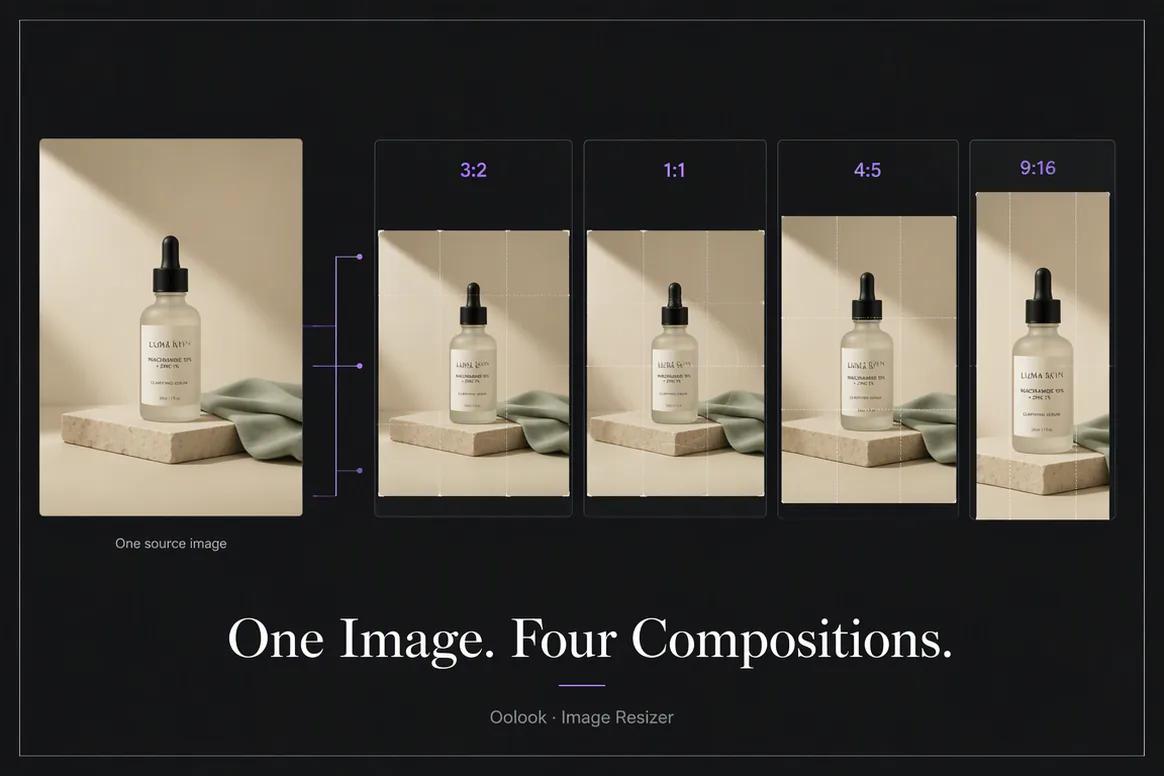
Adapt existing media to a new campaign format or destination while reviewing the intended dimensions, crop, and focal area.

  • Resize eligible images for supported formats
  • Reframe media around the intended subject
  • Prepare appropriate campaign aspect ratios
  • Review the result before using it in content
Marketing image resized and reframed inside Oolook

Improve the media

Remove Backgrounds and Upscale Eligible Assets

Use focused image or video processing when the existing asset needs a cleaner background or a higher-quality output.

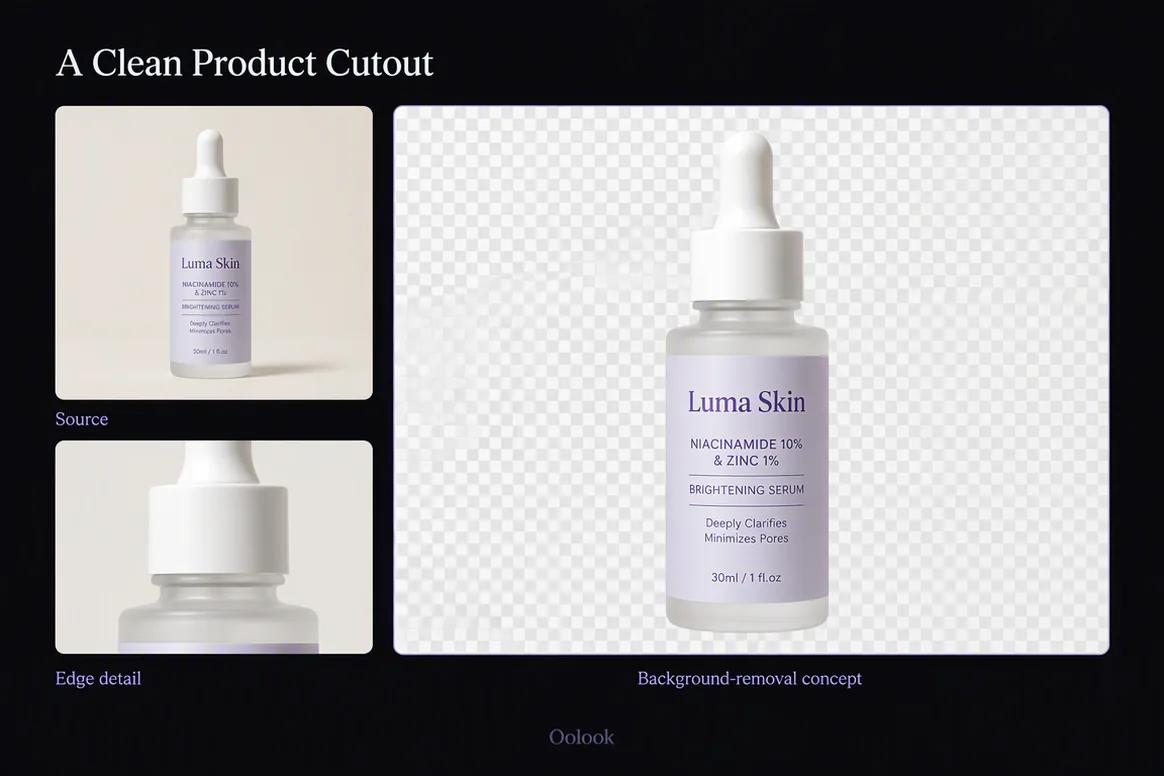
  • Remove backgrounds from eligible images
  • Run supported video background removal
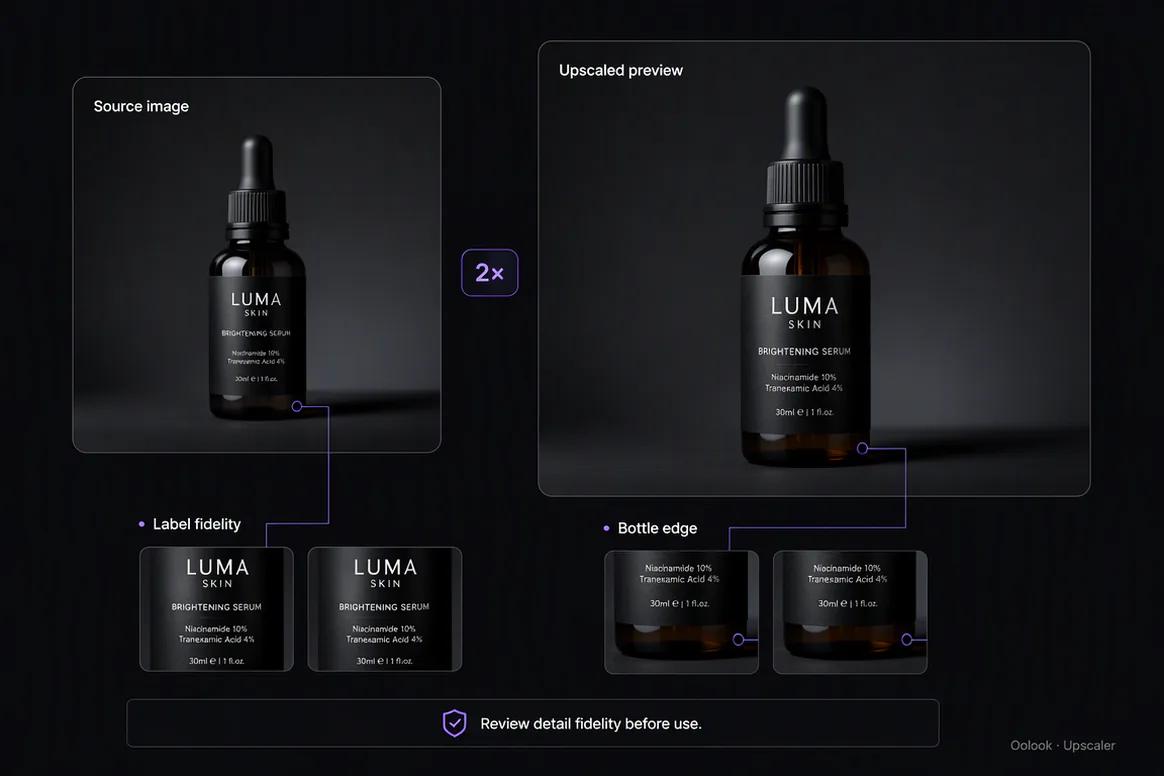
  • Upscale eligible images or videos
  • Review processing limits and credit costs
Background removal and media upscaling workflows in Oolook

Control the color

Extract Palettes and Apply Supported Color Workflows

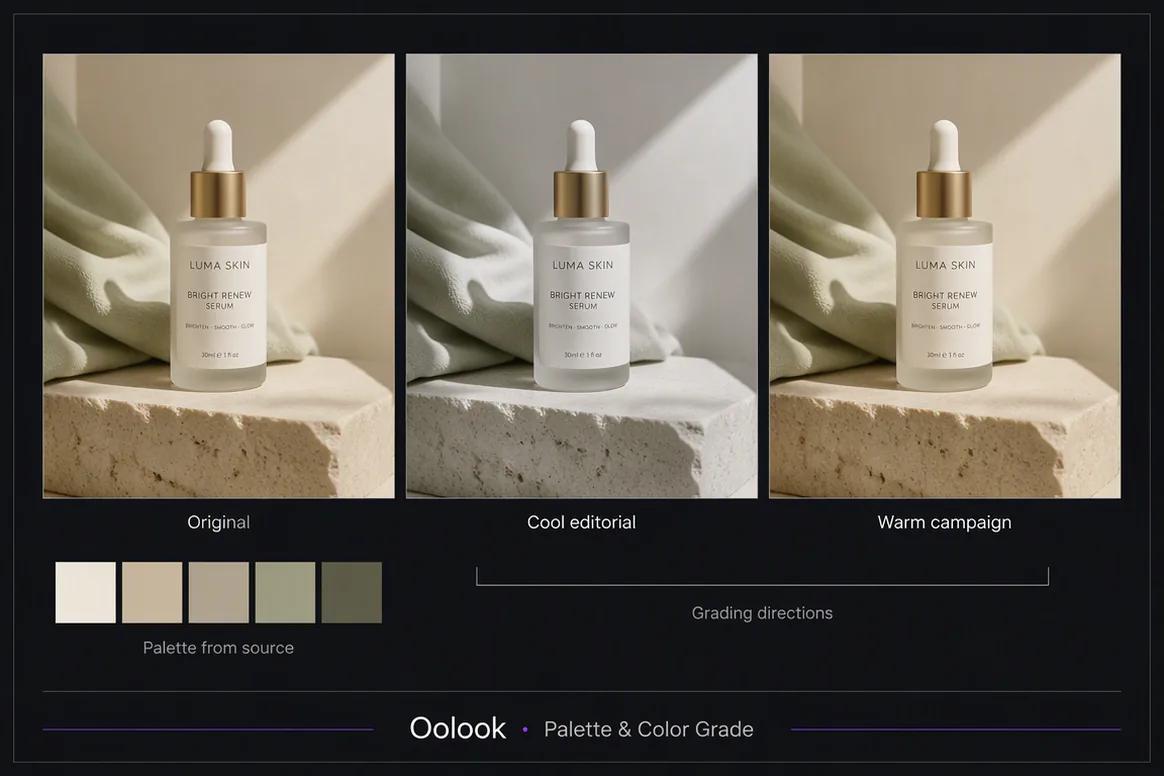
Use color information from approved references to guide processing and prepare more visually consistent campaign assets.

  • Extract color palettes from eligible images
  • Use palette information in supported workflows
  • Apply available image color-grading controls
  • Save the approved processed result to the Media Library
Palette extraction and image color grading inside Oolook

Processed media examples

Turn Existing Media Into Campaign-Ready Assets

Preserve the original source while creating reviewed background-removed, reframed, upscaled, and color-adjusted outputs.

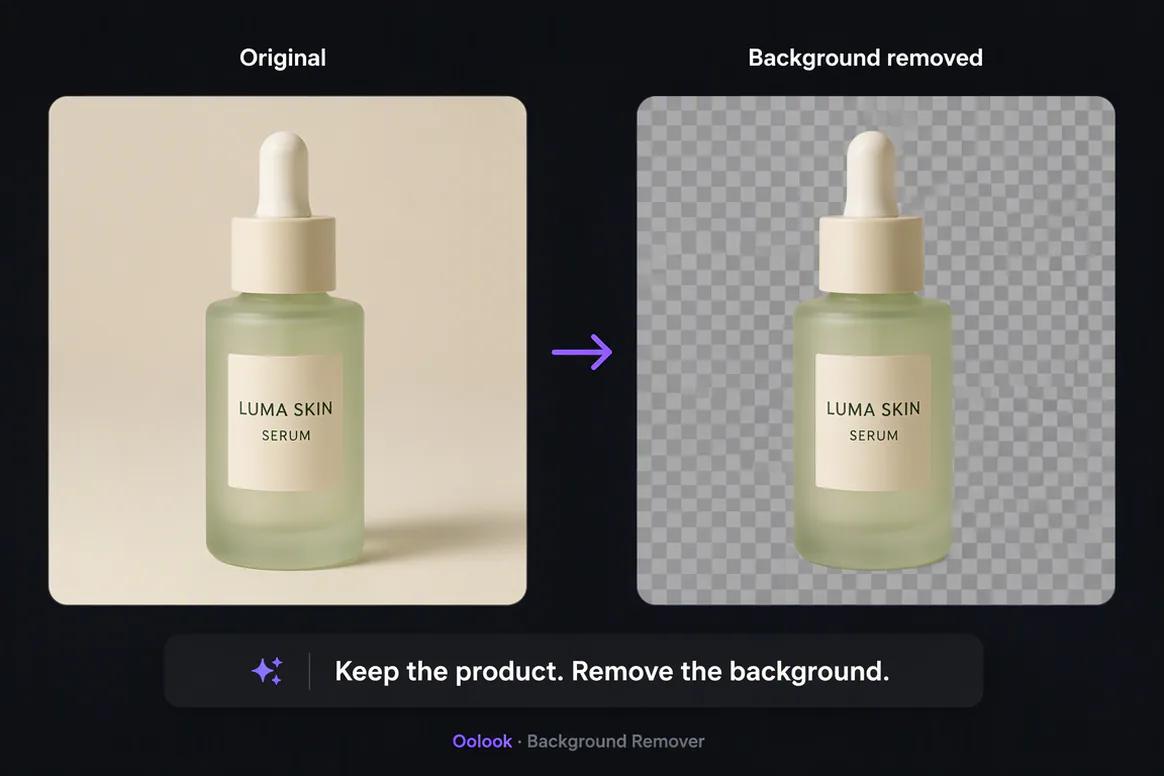
Oolook displaying a completed product background-removal output

Background-Removed Asset

Create a clean transparent product output while preserving the original source.

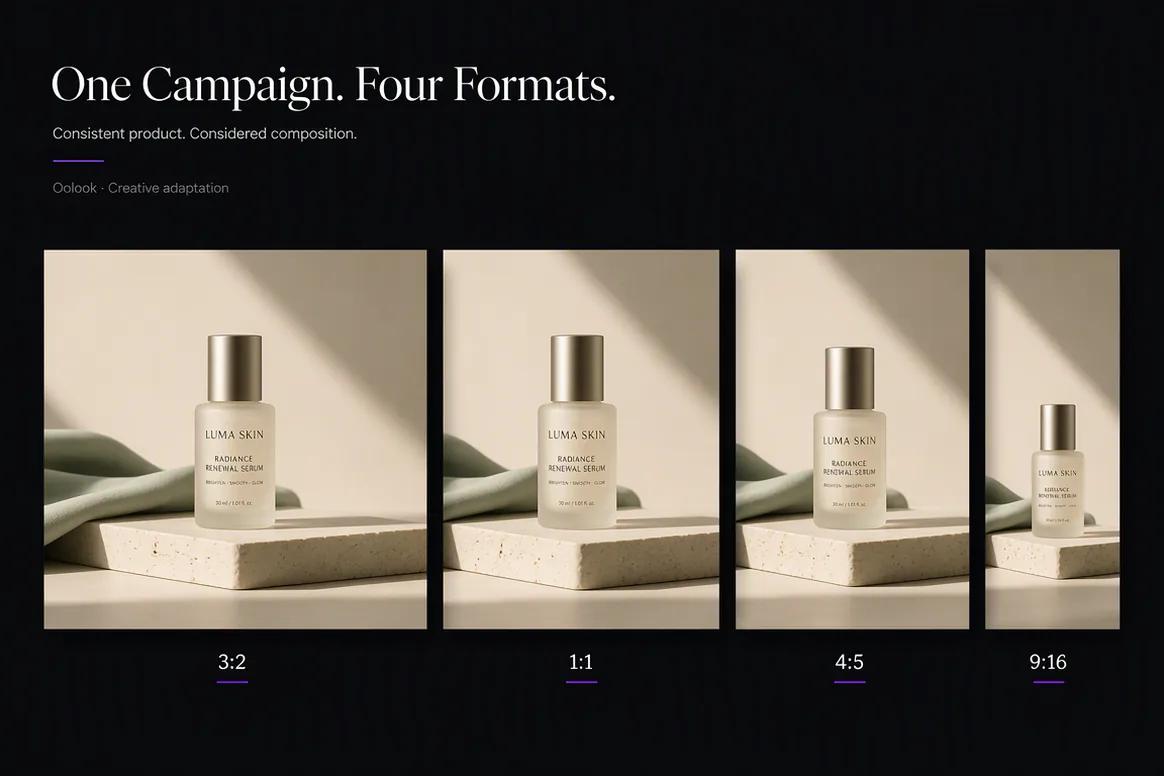
Oolook displaying one campaign image adapted into several aspect ratios

Cross-Platform Media Set

Prepare landscape, square, portrait, and vertical outputs with controlled subject placement.

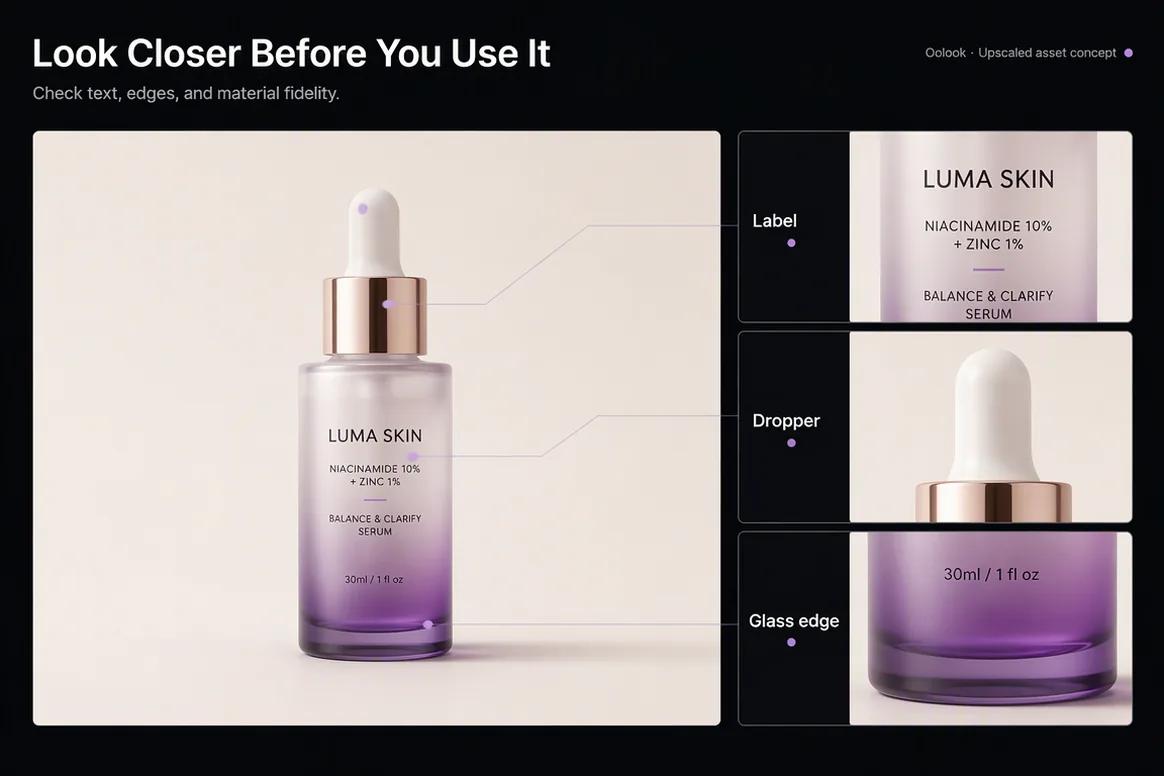
Oolook displaying an upscaled product image with detail review

Enhanced Product Asset

Review label, edge, texture, and product fidelity before saving an upscaled result.

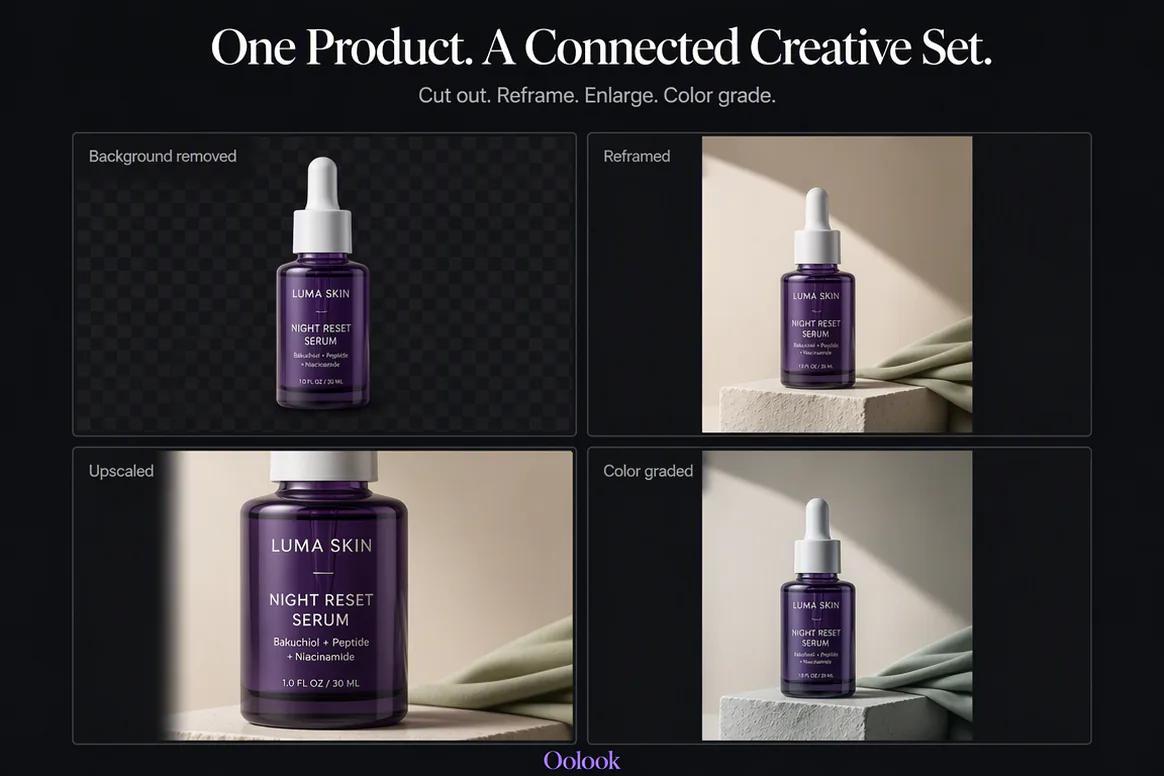
Oolook displaying a collection of processed campaign assets

Processed Campaign Collection

Organize background removal, reframing, upscaling, and color processing around one campaign.

Oolook Copilot in action

How Oolook Copilot Prepares a Media Operation

Keep the source, requested transformation, settings, credit impact, and output destination visible.

01

Describe the required result

Tell Copilot how the existing image or video needs to change and where the new output will be used.

02

Select the source asset

Choose an eligible asset from the selected brand's Media Library or upload the required source.

03

Prepare the operation

Review the processing type, dimensions, format, relevant controls, and displayed credit cost.

04

Confirm and save

Approve the supported processing action and save the selected output to the correct brand workspace.

Built for AI Media Processing

Use Focused Processing for Different Media Problems

Available inputs, output formats, limits, credit costs, processing quality, and supported settings depend on the current Oolook application.

Background removal

Prepare transparent or separated-subject outputs from eligible image and video inputs.

Resize and reframe

Adapt existing assets to supported dimensions, crops, aspect ratios, and focal compositions.

Image and video upscaling

Create a higher-resolution output from eligible source media.

Palette and color workflows

Extract useful color information and apply supported image color-grading operations.

Practical marketing jobs

Use Oolook for Recurring Media Preparation

Process existing assets around a specific campaign or publishing requirement.

Remove a product-image background

Resize creative for another platform

Reframe media around the subject

Upscale a lower-resolution asset

Extract a palette from a reference

Color-grade an approved campaign image

One connected workspace

Keep Processed Media Connected to Marketing Execution

Every approved output can remain associated with the brand and continue into creative, content, and publishing workflows.

Media Library

Select source assets and save completed processed outputs inside the correct brand workspace.

Background removal

Run supported background-removal workflows for eligible image and video inputs.

Resize and reframe

Prepare existing media for different campaign dimensions and compositions.

Media upscaling

Create higher-resolution outputs from eligible images or videos.

Palette and color

Extract palettes and apply supported image color-grading workflows.

Content and publishing

Use approved processed outputs in supported social content and publishing actions.

Why Oolook

Replace Repeated File Handoffs With Connected Processing

Oolook keeps the source asset, processing result, brand context, and next marketing action in one workflow.

Workflow
Disconnected tools
Oolook
Source asset
Downloaded from storage before editing
Selected from the brand Media Library
Processing
Different tools handle each operation
Focused media workflows remain connected
Output
Exports return to an unorganized folder
Approved results can return to the Media Library
Brand context
Source and campaign context are separated
Assets remain associated with the selected brand
Publishing
Processed media is uploaded again
Outputs continue into supported content workflows

Step-by-step guide

How to Process Marketing Media With AI

Select the correct source, choose the focused operation, and review the output before reuse.

  1. 1

    Select the brand workspace

    Use the workspace containing the source media, Brand Kit, campaign, and intended publishing destination.

  2. 2

    Choose the source asset

    Select an eligible image or video from the Media Library or upload the required source.

  3. 3

    Choose the processing workflow

    Select background removal, resizing, reframing, upscaling, palette extraction, or color grading.

  4. 4

    Configure the operation

    Review the available dimensions, format, crop, focal point, quality, and other supported controls.

  5. 5

    Review credit usage

    Check the displayed cost before confirming any credit-consuming AI operation.

  6. 6

    Inspect the result

    Review subject edges, dimensions, quality, colors, product accuracy, and campaign suitability.

  7. 7

    Save and reuse the output

    Store the approved result in the Media Library and continue into supported content or publishing.

Frequently asked questions

Your AI Media Processing Questions, Answered

What is AI media processing?+

AI media processing uses focused models or automated operations to transform existing images or videos, such as removing backgrounds, resizing, reframing, upscaling, extracting palettes, or grading colors.

Can Oolook remove image backgrounds?+

Yes. Oolook includes an established image background-removal workflow for eligible inputs.

Can Oolook remove video backgrounds?+

Yes. Oolook includes a supported video background-removal workflow, subject to current input limits and application availability.

Can Oolook resize and reframe images?+

Oolook supports image resizing and reframing workflows for eligible source media and available output settings.

Can Oolook upscale images and videos?+

Oolook supports image and video upscaling in its established media-processing toolset, subject to current limits and credit costs.

Can Oolook extract an image color palette?+

Yes. Palette extraction is part of Oolook's established image and media workflow.

Can I save a processed output?+

Completed resized, upscaled, background-removed, and color-graded outputs can be saved to the selected brand's Media Library.

Does media processing use AI credits?+

Credit usage depends on the current processing application and operation. Any credit-consuming Copilot action should display its cost before confirmation.

Start with Oolook

Prepare Existing Media for Its Next Marketing Job

Connect source assets, focused processing, credit review, Media Library storage, social content, and controlled publishing.